
Handling playwright alerts, windows, and frames is an essential skill for automation testing. In this guide, you will learn how to manage browser alerts, switch between multiple windows, and interact with iframes using Playwright.
What are Alerts?
Alerts are browser popup dialogs triggered by JavaScript.
They are used by web applications to display messages or ask users for confirmation before performing actions.
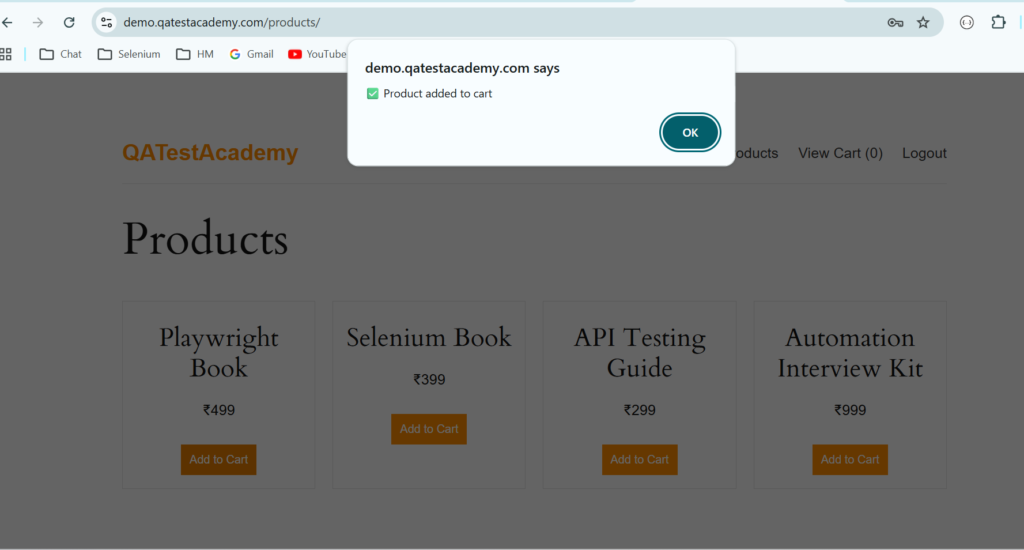
When an alert appears, the browser blocks interaction with the rest of the page until the alert is handled.
In automation testing, these alerts must be accepted or dismissed programmatically.
Playwright handles alerts using the dialog event.
Types of JavaScript Alerts
There are three main types of alerts.
1. Alert Box
An alert box displays a message to the user and only has an OK button.
Example:
alert("Login Successful");The user must click OK to continue.
2. Confirm Dialog
A confirm dialog asks the user to confirm an action.
It contains:
- OK
- Cancel
Example:
confirm("Are you sure you want to delete this record?");3. Prompt Dialog
Prompt dialogs allow the user to enter text input.
Example:
prompt("Enter your name");How Playwright Handles Alerts
Playwright uses an event listener called dialog.
When an alert appears, Playwright captures it using:
page.on('dialog', async dialog => {

});
The dialog object contains:
- dialog.type()
- dialog.message()
- dialog.accept()
- dialog.dismiss()
Accepting an Alert
Accepting an alert means clicking OK.
Example:
page.on('dialog', async dialog => {
  await dialog.accept();
});

await page.click('#deleteButton');
What happens here?
- A click action triggers the alert
- Playwright listens for the dialog event
- The alert is accepted automatically
In Playwright, dialog handlers (alerts, confirms, prompts) must be registered before the action that triggers them.Playwright emits a ‘dialog’ event the moment a popup appears. If the listener is registered after the click, the event is missed.
Dismissing an Alert
Dismissing means clicking Cancel.
Example:
page.on('dialog', async dialog => {
  await dialog.dismiss();
});

await page.click('#deleteButton');
Handling Prompt Alerts
Prompt dialogs require text input.
Example:
page.on('dialog', async dialog => {
  await dialog.accept('Arun');
});

await page.click('#enterName');
Here:
- The prompt receives the value Arun
- Then the alert is accepted
Capturing Alert Message
Often we need to verify the alert message.
Example:
page.on('dialog', async dialog => {

  console.log(dialog.message());

  await dialog.accept();

});
Output example:
Are you sure you want to delete?Getting Alert Type
Playwright allows retrieving the alert type.
Example:
page.on('dialog', async dialog => {

  console.log(dialog.type());

  await dialog.accept();

});
Possible types:
- alert
- confirm
- prompt
- beforeunload
Full Alert Handling Example
Example test scenario:
User deletes a record and a confirmation alert appears.
import { test, expect } from '@playwright/test';

test('Handle delete confirmation alert', async ({ page }) => {

  await page.goto('https://example.com');

  page.on('dialog', async dialog => {

    console.log(dialog.message());

    await dialog.accept();

  });

  await page.click('#deleteRecord');

});
Best Practices for Handling Alerts
- Always register the dialog listener before triggering the alert
Correct:
page.on('dialog', handler)
page.click()
Incorrect:
page.click()
page.on('dialog')
- Validate alert messages when possible
expect(dialog.message()).toContain("Delete");
- Handle alerts inside test steps clearly.
Handling Multiple Windows / Tabs in Playwright
Some web applications open new pages in:
- New tabs
- New browser windows
- External pages
Examples:
- Payment gateway
- Documentation links
- Reports
- Login through OAuth
Automation scripts must switch between these windows.
Playwright Architecture
Playwright manages browser tabs using:
Browser → Context → Page
Browser
   └── Context
          ├── Page 1
          ├── Page 2
          └── Page 3
Each tab or window is represented by a Page object.
Handling a New Tab
When clicking a link that opens a new tab:
Example:
const [newPage] = await Promise.all([

  context.waitForEvent('page'),

  page.click('#openWindow')

]);
Why Promise.all?
This ensures Playwright waits for the new tab event while clicking the button.
Waiting for the New Page to Load
After the tab opens:
await newPage.waitForLoadState();This ensures the page loads completely before interaction.
Interacting With New Window
Example:
await newPage.fill('#search','Playwright');
await newPage.click('#searchButton');
Switching Between Tabs
Playwright does not require explicit window switching like Selenium.
Simply use the page object.
Example:
page → original tab
newPage → new tab
Example:
await page.bringToFront();Getting All Open Tabs
Example:
const pages = context.pages();Output example:
[
  Page1,
  Page2,
  Page3
]
Closing a Tab
Example:
await newPage.close();This closes the new tab.
Real Example – Multiple Windows
Example test scenario:
Click a link that opens documentation in a new tab.
test('Handle new tab', async ({ page, context }) => {

  await page.goto('https://example.com');

  const [newPage] = await Promise.all([
    context.waitForEvent('page'),
    page.click('#documentation')
  ]);

  await newPage.waitForLoadState();

  console.log(await newPage.title());

});
Best Practices for Window Handling
- Always use Promise.all()
- Always wait for page load
- Store the new page object
- Close unnecessary tabs
Handling Frames in Playwright
Before handling frames, make sure you understand Playwright locators.
What are Frames?
Frames (also called iframes) are HTML elements that embed another webpage inside the main page.
Example:
<iframe src="payment.html"></iframe>Frames are commonly used for:
- Payment gateways
- Ads
- Embedded widgets
- External login pages
Why Frames Are Challenging
Elements inside frames belong to a different DOM context.
Automation scripts cannot directly access them from the main page.
Example Frame Structure
Main Page
   └── iframe
           └── Login form
The script must switch to the frame first.
Accessing Frames in Playwright
Playwright provides frameLocator().
Example HTML
<iframe id="login-frame">Playwright code:
await page.frameLocator('#login-frame')
          .locator('#password')
          .fill('123456');
Handling Nested Frames
Sometimes frames contain other frames.
Example structure:
Main Page
   └── Frame 1
         └── Frame 2
               └── Element
Example:
page.frameLocator('#outer-frame')
    .frameLocator('#inner-frame')
    .locator('#submit')
    .click();
Listing All Frames
Example:
const frames = page.frames();
console.log(frames.length);
Finding Frame by Name
Example:
const frame = page.frame({ name: 'payment-frame' });Finding Frame by URL
Example:
const frame = page.frame({ url: /payment/ });Example Test – Login Inside Frame
test('Login inside iframe', async ({ page }) => {

  await page.goto('https://example.com');

  const frame = page.frameLocator('#login-frame');

  await frame.locator('#username').fill('admin');

  await frame.locator('#password').fill('password');

  await frame.locator('#login').click();

});
Best Practices for Frames
- Always identify frames first
- Use
frameLocator()instead of manual switching - Avoid XPath across frames
- Wait for frames to load