
Playwright interview questions are becoming very common in automation interviews as more companies adopt Playwright for modern test automation. In this guide, you will find the latest Playwright interview questions and answers covering framework design, CI/CD, debugging, and real-world scenarios.
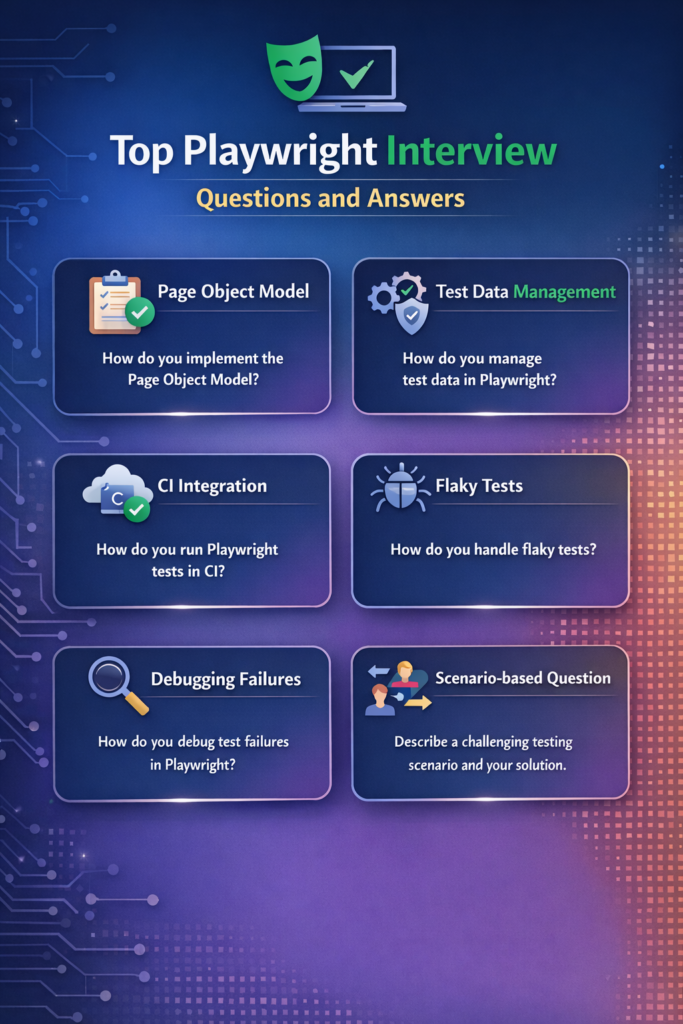
Top Playwright Interview Questions and Answers
These Playwright interview questions are designed based on real company projects and real interview experiences. Most automation engineers are now expected to understand Playwright framework design and CI/CD integration.
Section 1 — Playwright Architecture Questions
1. How does Playwright work internally?
Playwright works by directly communicating with browser engines using their native automation protocols instead of relying on WebDriver like Selenium.
Internally, Playwright:
- Launches real browser engines (Chromium, Firefox, WebKit)
- Uses browser-specific debugging protocols (like Chrome DevTools Protocol)
- Injects its own automation layer into the browser
- Controls the browser at a low level for fast and reliable execution
This allows Playwright to:
- Perform actions faster
- Handle modern web features (SPA, shadow DOM, iframes)
- Implement auto-waiting and smart synchronization
2. Explain Playwright browser contexts
A browser context is an isolated browser session created inside a single browser instance.
Each context behaves like a brand-new browser profile with its own cookies, cache, local storage, and authentication data. Playwright uses browser contexts to provide test isolation without launching a new browser every time.
const browser = await chromium.launch();
const context = await browser.newContext(); // new clean session
const page = await context.newPage();
const browser = await chromium.launch();
This line launches a new Chromium browser instance (similar to opening a new Chrome browser).
Playwright starts the browser in the background so automation can control it.
const context = await browser.newContext();
This line creates a new browser context, which is a fresh and isolated browser session.
It behaves like a brand-new browser profile with no cookies, cache, or login data.
const page = await context.newPage();
This line opens a new tab (page) inside that browser context.
This is where your test actions like navigation, clicking, and typing will happen
3. How does Playwright handle parallel execution internally?
Playwright uses a worker-based architecture to run tests in parallel. It creates multiple worker processes based on CPU cores, and each worker launches its own browser instance with isolated browser contexts. This allows multiple test files to run simultaneously without sharing session data, ensuring fast execution and test isolation. Parallel execution is controlled through the Playwright configuration file, making it easy to scale tests for large applications
import { defineConfig } from '@playwright/test';

export default defineConfig({
  workers: 4,   // Run tests in 4 parallel workers
  use: {
    browserName: 'chromium',
    headless: true
  }
});
This tells Playwright to run tests using 4 parallel workers.
Each worker runs tests in its own browser and context, so execution is fast and isolated.
Section 2 — Framework Design Questions
1. Explain Playwright project structure
A typical Playwright automation framework follows a modular and scalable structure
playwright-project/
│
├── tests/                → Test cases
├── pages/                → Page Object classes
├── fixtures/             → Custom test setup
├── utils/                → Reusable helpers
├── test-data/            → External test data
├── reports/              → HTML reports
│
├── playwright.config.ts  → Framework configuration
├── package.json          → Dependencies & scripts
└── .gitignore            → Git ignore rules
tests/
Contains all test scripts. Each file represents a feature or module (login, checkout, orders, etc).
pages/
Implements Page Object Model. Each class represents a UI page and contains element locators and actions.
fixtures/
Holds custom Playwright fixtures for common setup like login, environment setup, and API context.
utils/
Contains reusable utility functions like API helpers, database connections, and data generators.
test-data/
Stores external JSON or CSV files used for data-driven testing.
reports/
Stores execution results including HTML reports, screenshots, and videos.
playwright.config.ts
Controls browsers, parallel execution, retries, timeouts, base URL, reporters, and environment.
package.json
Manages dependencies and test execution scripts.
2. What is Page Object Model in Playwright?
Page Object Model is a design pattern used in Playwright to make test automation clean, reusable, and easy to maintain. In POM, each web page of the application is represented as a class, and all the locators and actions related to that page are written in one place.
Instead of writing locators directly inside test cases, tests call methods from page classes. This keeps test scripts simple and readable and makes maintenance easy when UI changes
For Eg:
Login Page class
export class LoginPage {
  constructor(private page) {}

  async login(username: string, password: string) {
    await this.page.fill('#username', username);
    await this.page.fill('#password', password);
    await this.page.click('#loginBtn');
  }
}
Test File
test('Login Test', async ({ page }) => {
  const loginPage = new LoginPage(page);
  await loginPage.login('admin', '12345');
});
const loginPage = new LoginPage(page);
This line creates an object of the LoginPage class and passes the browser page to it.
Now this object can access all login-related actions written in the Login Page class.
await loginPage.login('admin', '12345');
This line calls the login method from the Page Object and performs:
- Enter username
- Enter password
- Click login button
3. How do you manage test data?
We can manage test data in playwright using a layered approach. Static test data is stored in external JSON or CSV files for easy maintenance. Sensitive data like usernames, passwords, and tokens are handled through environment variables. For dynamic scenarios, we can generate test data during execution using utility functions. For complex workflows, create and clean up test data using backend APIs instead of UI to improve speed and reliability. This approach keeps tests clean, secure, and scalable.
Section 3 — CI/CD Questions
1. How do you run Playwright in CI?
Playwright is integrated with CI tools like Jenkins, GitHub Actions, GitLab CI, or Azure DevOps so that tests run automatically on every code change.
Whenever a developer pushes code:
- The CI server pulls the latest code
- Installs dependencies
- Runs Playwright tests
- Generates reports
- Marks the build pass or fail
2. How do you handle flaky tests?
Flaky tests are usually caused by timing issues, unstable locators, dynamic elements, or test environment problems. Playwright handles flaky tests by using built-in auto-waits, reliable locator strategies, retries, proper test isolation, and strong debugging tools.
- Use Playwright Auto-Waits
Playwright automatically waits for elements to be visible, enabled, and ready before interacting, which removes most timing-related failures.
await page.click('#submitBtn'); // waits automatically- Use Reliable Locators
Avoid XPath when possible and use Playwright’s recommended locators:
await page.getByRole('button', { name: 'Login' }).click();
- Enable Retries for CI
Retries help avoid temporary environment or network issues.
retries: 2
- Ensure Test Isolation
Use fresh browser contexts so no test data is shared.
- Use Tracing & Debugging
Playwright trace viewer helps analyze flaky failures visually.
trace: 'on-first-retry'
- Avoid Hard Waits
Never use waitForTimeout() unless absolutely necessary.
3. How do you generate reports?
Playwright provides built-in reporting features that generate detailed HTML reports automatically after test execution. These reports include test results, screenshots, videos, traces, and failure logs, making debugging easy. When you run tests:
npx playwright testPlaywright automatically generates an HTML report.
To view it:
npx playwright show-reportThis opens an interactive report in your browser showing:
- Passed / Failed tests
- Error logs
- Screenshots & videos
- Trace viewer
Section 4 — Scenario Based Questions
1. How do you handle waits?
Playwright uses a smart auto-wait mechanism that automatically waits for elements to be visible, enabled, and ready before performing any action. Because of this, most manual waits are not required, which makes tests faster and more stable
- Rely on Auto-Waits
Playwright automatically waits for actions like click, fill, and navigation.
await page.click('#loginBtn'); // waits automatically- Use Explicit Waits When Needed
For dynamic content or API responses:
await page.waitForSelector('#dashboard');- Wait for Network Calls
await page.waitForResponse(res => res.url().includes('/login') && res.status() === 200);- Avoid Hard Waits
Never use:
await page.waitForTimeout(5000);2. How do you debug failures?
Playwright provides powerful built-in debugging tools like trace viewer, screenshots, videos, logs, and headed mode which make analyzing failures easy and fast.
- Use Trace Viewer
Trace captures every step of the test including DOM snapshots, network calls, and screenshots.
use: {
  trace: 'on-first-retry'
}
Open trace:
npx playwright show-trace trace.zipThis allows you to visually replay the test and see exactly where it failed.
- Use Screenshots & Videos
use: {
  screenshot: 'only-on-failure',
  video: 'retain-on-failure'
}
You get visual proof of what happened during failure.
- Run in Headed Mode
npx playwright test --headedLets you watch the browser actions live.
- Use Debug Mode
npx playwright test --debugThis opens Playwright Inspector and pauses execution.
- Check Logs & Network Calls
page.on('console', msg => console.log(msg.text()));Helps debug frontend errors.
3. Your Playwright tests are passing locally but failing randomly in CI. How would you handle this?
First, we need to check whether the failures are due to timing or environment differences between local and CI. Enable retries and Playwright tracing in CI to capture detailed execution steps.
- Run tests in headless mode locally to match CI behavior
- Check network and API dependencies
- Replace any hard waits with proper auto-waits or explicit waits
- Use stable locators instead of dynamic XPath
- Review trace files and videos from CI failures
If needed, increase timeouts for slower CI environments and make sure tests are fully isolated using browser contexts.
Preparing these Playwright interview questions will help you crack automation interviews and confidently explain your Playwright framework and project experience.