
Playwright Page Object Model is a design pattern widely used in real-world Playwright automation frameworks to improve maintainability and readability. In real-world test automation projects, writing all test steps directly inside test files quickly becomes unmanageable. As the application grows, tests become lengthy, repetitive, and difficult to maintain. .
Playwright Page Object Model is a design approach where each application page is represented by a separate class. This class contains locators and actions related only to that page, while test files focus purely on validation and business logic. This separation makes the framework easier to understand, maintain, and extend.
Playwright Page Object Model (POM) Explained
First navigate inside your framework to the pages folder and create a file LoginPage.ts
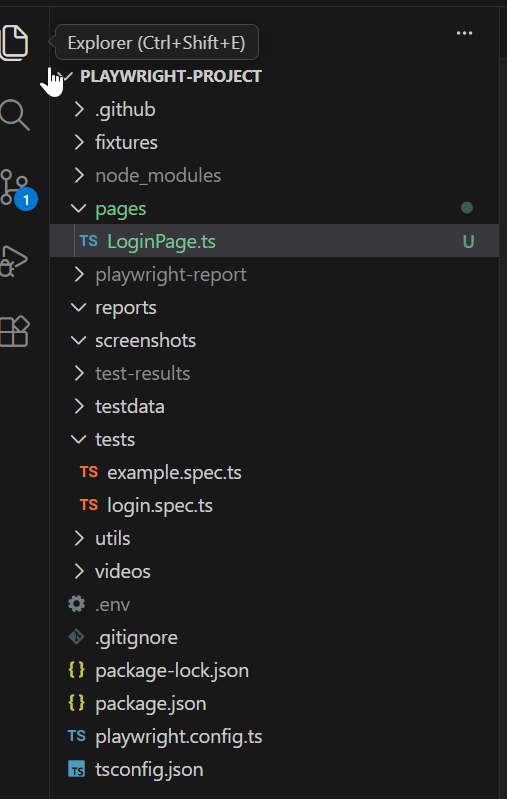
Now, we will take the previous example of login test case which we created in login.spec.ts and we will seperate the page objects from it. After the change, LoginPage.ts and login.spec.ts will look like this :
LoginPage.ts
import { Locator, Page } from '@playwright/test';

export class LoginPage{
    readonly page : Page;
    readonly username : Locator;
    readonly password : Locator;
    readonly loginBtn : Locator;
    readonly linkToLogin : Locator;

    constructor (page : Page){
        this.page = page;
        this.username = page.getByRole('textbox', { name: 'Email' });
        this.password = page.getByRole('textbox', { name: 'Password' });
        this.loginBtn = page.getByTestId('login-button');
        this.linkToLogin = page.getByRole('link', {name : 'Login'});
    }

    async navigateToHomePage() {
        await this.page.goto('https://demo.qatestacademy.com/');

    }

    async navigateToLoginPage(){
        await this.linkToLogin.click();
    }

    async login(usernameValue : string, passwordValue : string){
        await this.username.fill(usernameValue);
        await this.password.fill(passwordValue);
        await this.loginBtn.click();
    }

}
login.spec.ts
import { test, expect } from '@playwright/test';
import { LoginPage } from '../pages/LoginPage';

test('valid login', async ({ page }) => {

  const loginpage = new LoginPage(page);

  await loginpage.navigateToHomePage();
  await expect(page).toHaveTitle(/QATestAcademy Automation/);

  await loginpage.navigateToLoginPage();

  await loginpage.login('testadmin@test.com', 'Test@1234')
  await expect(page).toHaveURL(/products/);

});
Let’s go through each line to understand how this code works, starting with LoginPage.ts
Importing Required Playwright Classes
import { Locator, Page } from '@playwright/test';Here, we are simply importing what we need from Playwright.Page represents the browser tab, and Locator represents elements on the page like input fields, buttons, and links. These are the basic building blocks for interacting with the UI.
Defining the Page Object Class
export class LoginPage {This line creates a class called LoginPage.
Think of this class as a container that holds everything related to the login page—its elements and the actions a user can perform there.
Declaring the Page Instance
readonly page: Page;This line stores the Playwright browser page inside the class.
We mark it as readonly because once the page is assigned, we never want to change it. All actions inside this class will happen on this same browser tab. For example below given code is allowed :
await this.page.goto('https://example.com');
await this.page.click('#login');
But you are not allowed to :
this.page = anotherPage; // ❌ ErrorThis guarantees that the page object always interacts with the same browser tab throughout the test execution.
Declaring the Locators
readonly username: Locator;
readonly password: Locator;
readonly loginBtn: Locator;
readonly linkToLogin: Locator;
These lines declares locator for the username or email input field, password input field, login button and “Login” link. It uses the Locator type to represent a web element, ensuring stability and automatic waiting before interactions. Marking it as readonly prevents accidental reassignment later in the code.
Constructor Initialization
constructor(page: Page) {The constructor receives a Page object from the test file (login.spec.ts). This allows the page object class to use the same browser page that Playwright creates for the test file.
Assigning the Page Instance
this.page = page;This line assigns the passed Page instance to the class-level page variable. From this point onward, all page interactions inside this class will use this browser page.
Initializing the Username Locator
this.username = page.getByRole('textbox', { name: 'Email' });This line initializes the username locator using getByRole.
Initializing the Password Locator
this.password = page.getByRole('textbox', { name: 'Password' });This line initializes the password locator using getByRole.
Initializing the Login Button Locator
this.loginBtn = page.getByTestId('login-button');This line defines the locator for the login button using TestId. Storing this locator in the constructor ensures it is created only once and reused across methods.
Initializing the Login Page Link Locator
this.linkToLogin = page.getByRole('link', { name: 'Login' });This line uses Playwright’s getByRole method to locate a link element by its accessible role and visible name. This approach improves test reliability and aligns with accessibility standards.
Navigating to the Home Page
async navigateToHomePage() {
  await this.page.goto('https://demo.qatestacademy.com/');
}
This method opens the application’s home page.
By keeping this inside the page object, we avoid repeating URLs in every test
Navigating to the Login Page
async navigateToLoginPage() {
  await this.linkToLogin.click();
}
This method represents the user action of opening the login page from the home page. This line clicks on the “Login” link using the previously defined locator. Playwright automatically waits for the element to be visible and clickable.
Performing Login Action
async login(usernameValue: string, passwordValue: string) {This method defines a business-level action called login. Instead of interacting with locators directly in test files, tests call this method, making them more readable and maintainable.
await this.username.fill(usernameValue);This line enters the provided username value into the username input field.
await this.password.fill(passwordValue);This line enters the provided password value into the password input field.
await this.loginBtn.click();This line clicks the login button to submit the login form.
Understanding This Playwright Login Test
Now that we have created a LoginPage using the Page Object Model, it’s time to see how we use it inside a real test. We will go through the changes made in login.spec.ts.
Importing Playwright Test Tools
import { test, expect } from '@playwright/test';Here, we import two important things from Playwright.test is used to define a test case, and expect is used to add validations or assertions. Without these, Playwright wouldn’t know what to run or what to verify.
Importing the Login Page Object
import { LoginPage } from '../pages/LoginPage';This line imports the LoginPage class we created earlier.
By doing this, the test doesn’t need to know anything about locators or UI details. It simply calls high-level actions like “navigate to login page” or “login”.
Writing the Test Case
test('valid login', async ({ page }) => {This line defines a test named “valid login”.
Playwright automatically provides a browser page through its built-in fixtures. This page represents a fresh browser tab created specifically for this test.
Creating the Page Object Instance
const loginpage = new LoginPage(page);Here, we create an object of the LoginPage class and pass the Playwright page to it.
This connects the test to the page object, allowing all actions inside LoginPage to run on the same browser tab.
From this point on, the test talks to the application only through the page object.
Opening the Application
await loginpage.navigateToHomePage();This line opens the home page of the application.
The test does not care about the actual URL—it simply calls a meaningful method name. This makes the test easy to read and understand.
Verifying the Page Title
await expect(page).toHaveTitle(/QATestAcademy Automation/);Here, we verify that the correct page has loaded by checking its title.
This is a simple but effective way to confirm that navigation was successful before moving to the next step.
Navigating to the Login Page
await loginpage.navigateToLoginPage();This line clicks on the “Login” link using the page object.
Again, the test remains clean and readable, without any direct interaction with locators.
Performing Login
await loginpage.login('testadmin@test.com', 'Test@1234');This line performs the entire login process in one step.
Behind the scenes, the page object fills the username, fills the password, and clicks the login button. The test simply provides the data.
This is one of the biggest advantages of using Page Object Model.
Verifying Successful Login
await expect(page).toHaveURL(/products/);This statement verifies that the browser has successfully navigated to a URL containing /products after an action like login or clicking a link.
Why This Design Is Considered Best Practice
This page object follows professional Playwright framework standards by keeping all locators and page actions inside a single class. Test files remain clean, UI changes are easy to handle, and the framework becomes scalable for long-term maintenance.
Next module we will learn how to manage test data in the framework , we will use the same Login test case as the example , and make changes in the framework.